
When seating guests at a table, or otherwise setting up a new tab, it’s sometimes necessary to record information about the party that can be shared with relevant staff/departments involved in serving the customers. For example, this might be dietary requirements, seating or accessibility needs, or allergies. Pre-sale questions facilitate this, and this guide will show you how to configure this for your venue.
To set up a pre-sale question, in the back-office go to Till>Till Features>Pre-sale Questions. You’ll see this form;
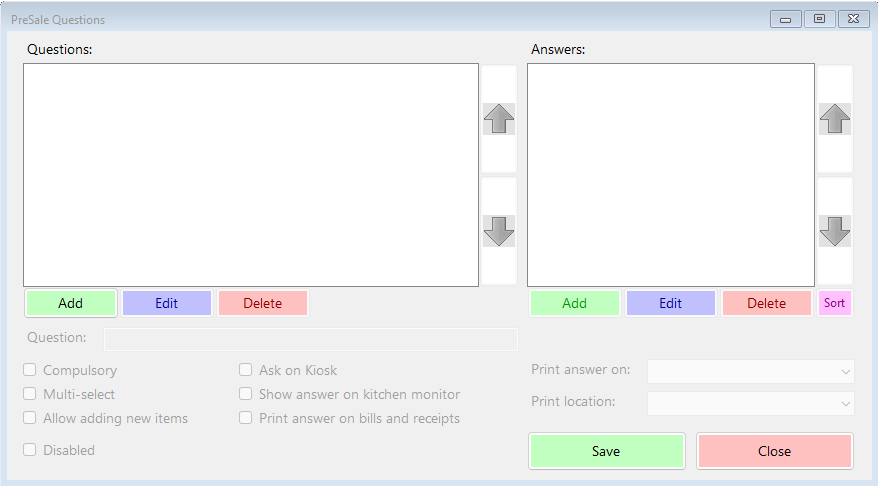
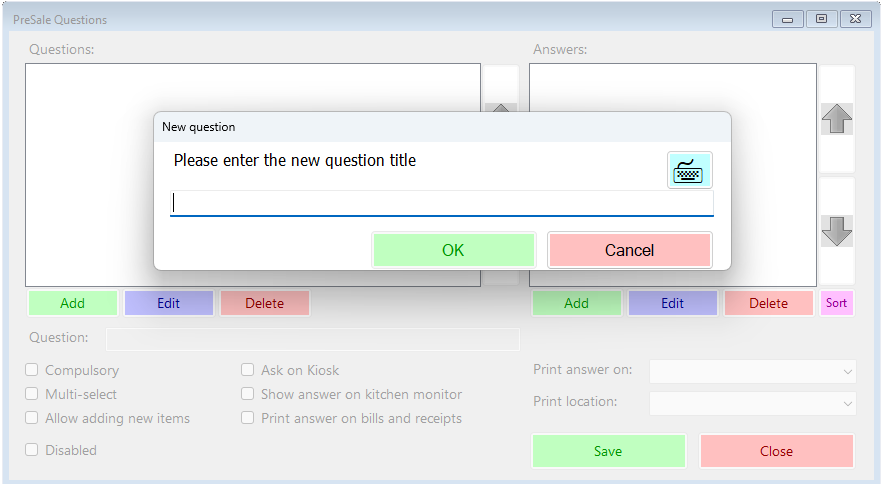
To begin, click Add on the left hand side, and you’ll be prompted to enter the title for the new question. Please note, this is not the question itself, just a way of identifying it;
Once you’ve entered the title, you can then add the full text of the question underneath;
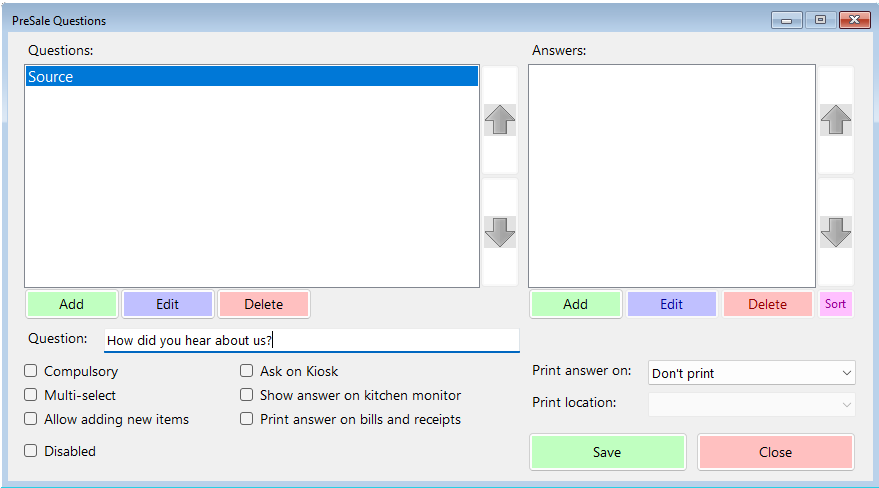
Beneath the question text there are various check-boxes that you can choose to select or not;
- Compulsory – if this option is not selected, users will be able to skip a question without providing at least one answer for any given tab/table.
- Multi-select – with this option selected, users will be able to select more than one answer to the question.
- Allow adding new items – if the question is of an open nature, you may not be able to think of all possible answers at the point of setting the question up. This option will allow entry of new answers at the point of creating a new tab.
- Ask on Kiosk – Memsec EPoS now offers self-service kiosks, and where one or more is in use at a venue, this switch will determine whether customers are asked this pre-sale question when using them.
- Show answer on kitchen monitor – if, instead of (or as well as) printers, there are kitchen monitors in use in your venue, ticking this box will allow the answers given on any tab to be displayed on those screens.
- Print answer on bills and receipts – this option gives you the opportunity to demonstrate to customers the answer to this question that they provided.
- Disabled – you can suspend use of a question by selecting this option.
Once you’ve entered a question and chosen relevant options, you’ll need to provide a selection of answers. These could be a simple Yes and No, or could be more detailed. Click Add on the right hand side, and you’ll be prompted to enter a new answer;
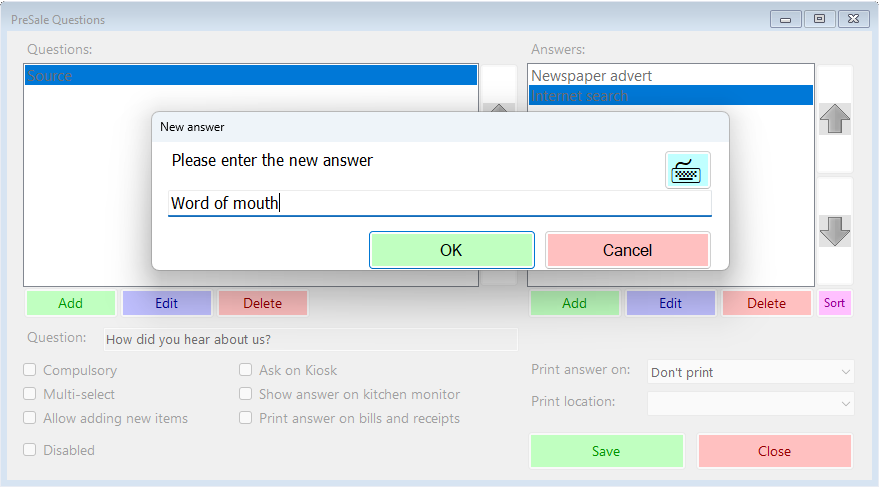
There’s no limit to the number of answers you can provide. It’s important to remember that if a question is compulsory you will need to provide at least one ‘neutral’ answer, such as ‘None’. If this is added last, you may need to move it to the top of the list, which you can do by highlighting an answer and moving it using the arrow buttons to the right of the list. Alternatively, you can sort the answers alphabetically by pressing the ‘Sort’ button.
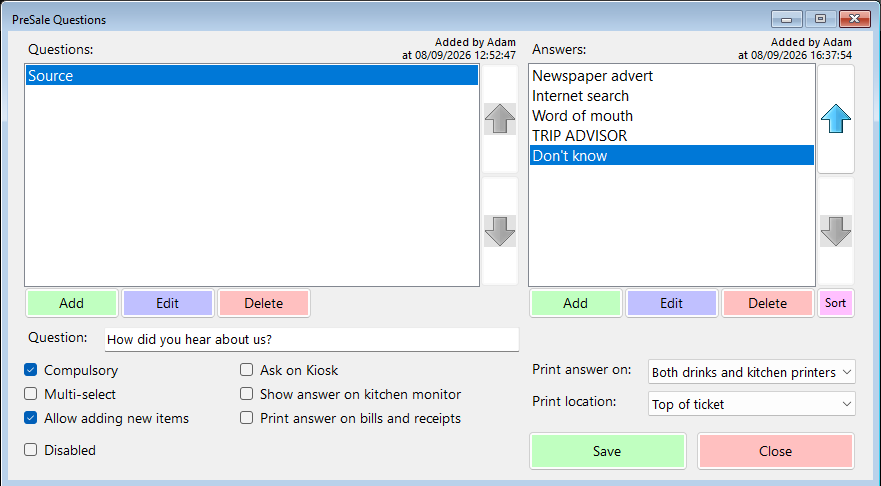
When you edit a question or answer, you will see a small note above the list, indicating who added the question or answer and when.
Once you have the question configured, you will need to assign it to one or more tab types. To do so, go to Till>Till Setup>Tab Types. Select each tab type that you’d like to apply the question to in turn, and click Edit. The list of any available questions is in the top-right hand corner of this screen. Select the relevant question from the drop-down and click ‘Save’.
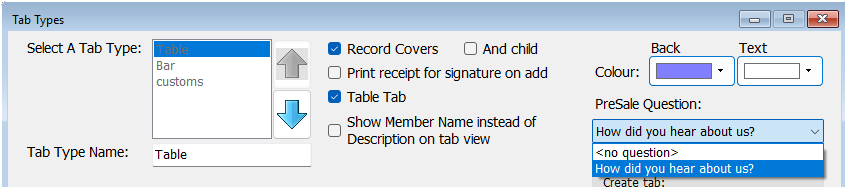
Once a question is assigned to a tab type, till users will immediately start to see the question when they create a tab of that type. They will see a screen like this;
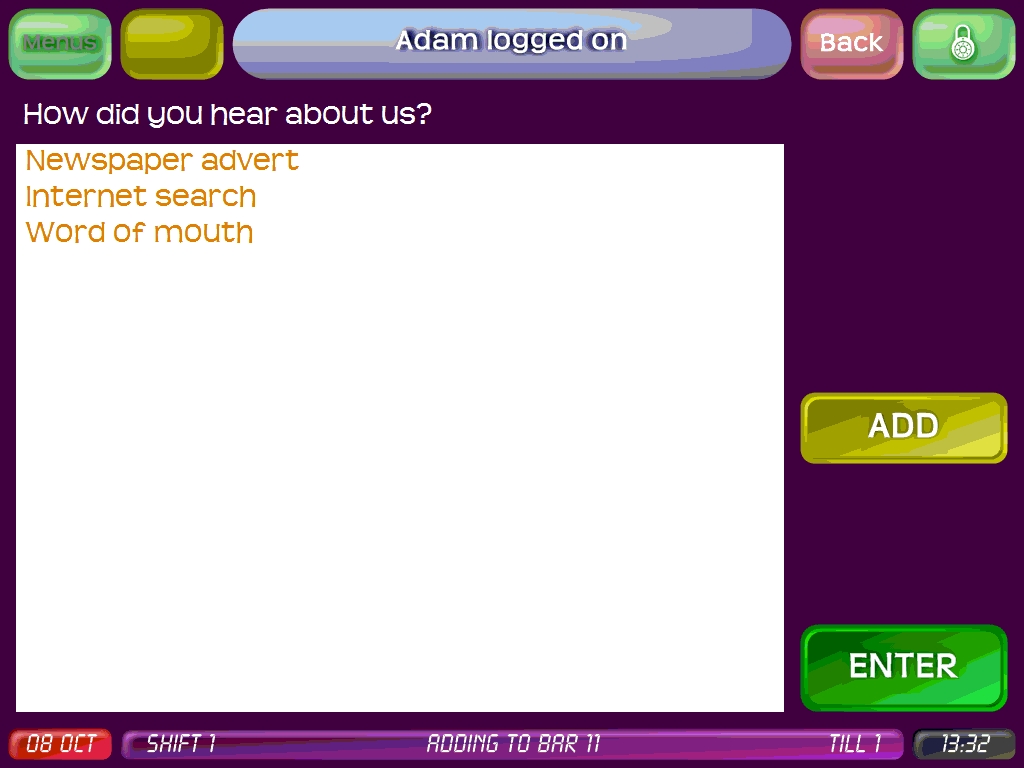
In this instance, because the question has been set to allow adding new items, there’s an ‘ADD’ button to the right of the list of current answers. Pressing that shows this screen;
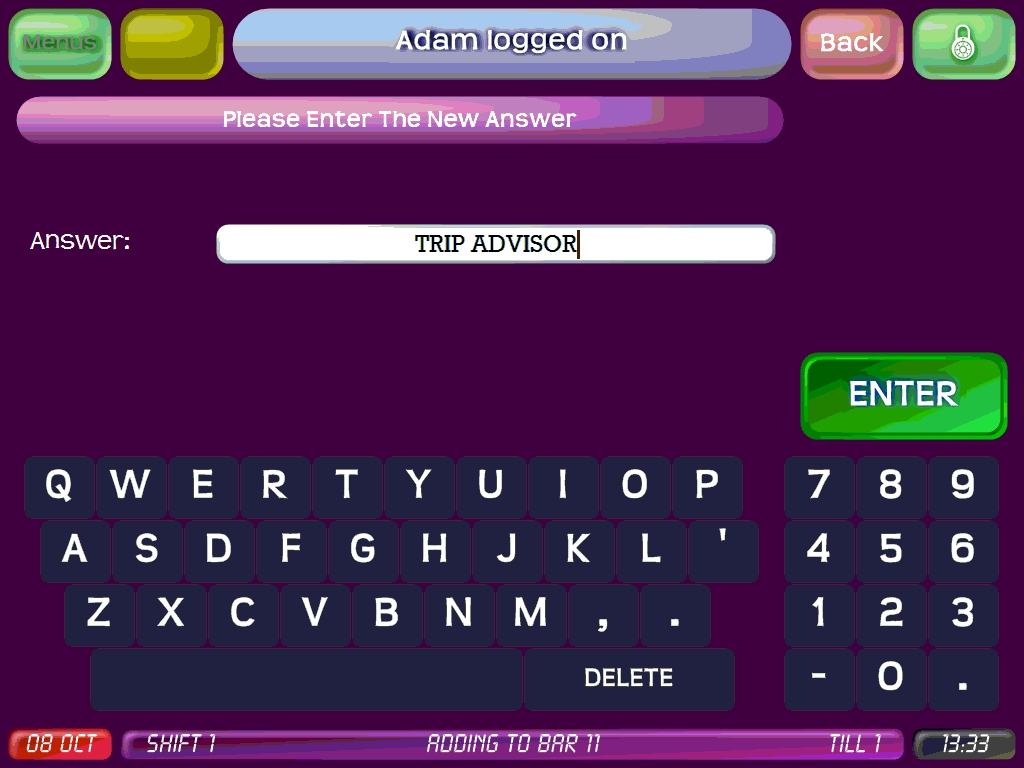
Pressing Enter here will add the new answer to the available list, pre-selected;
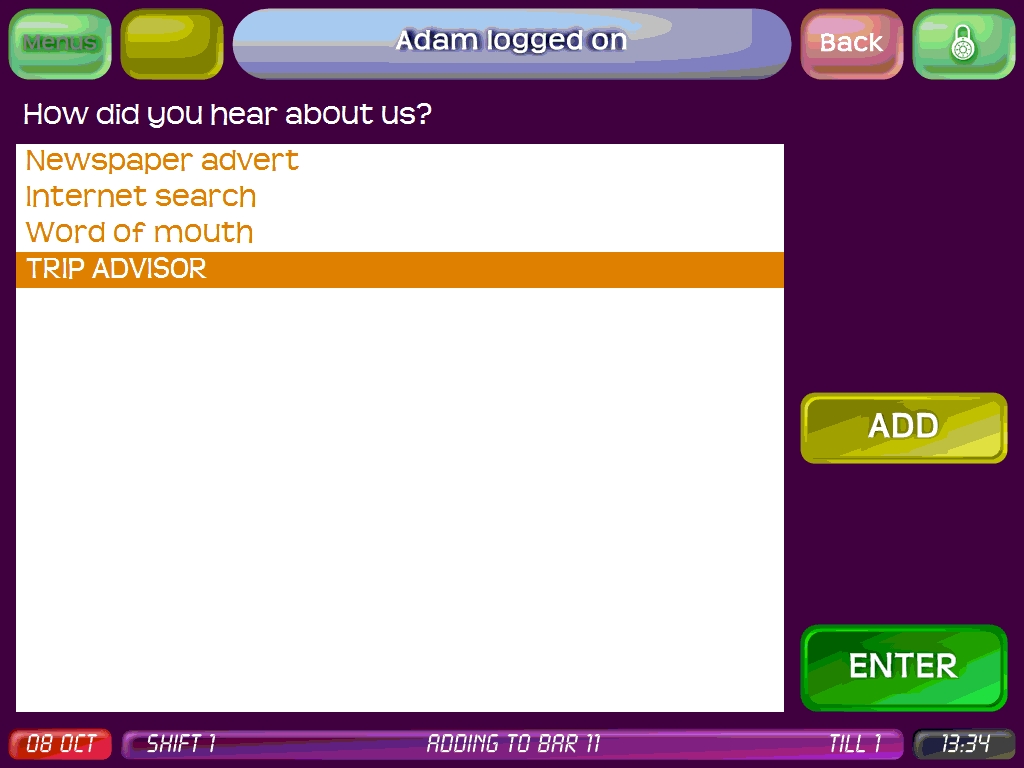
If the question allows multiple answers, the user can select these here as well as, or instead of, adding a new one. Press Enter again to record this answer or all selected answers for the current tab.
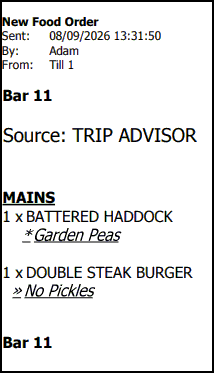
Once an answer has been recorded for a tab, the tab can be used as normal. If selected as an option, any items added to the tab that are printed in the kitchen or on a drinks printer will carry the question title and selected answer(s) on the tickets;
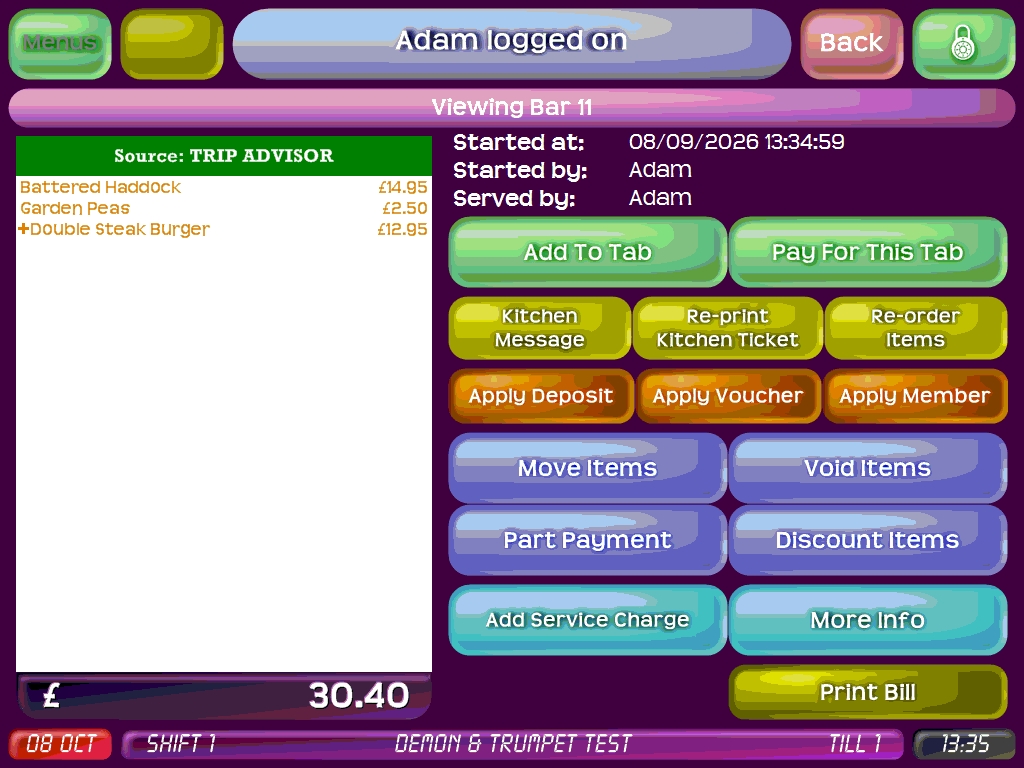
Similarly, when viewing the tab the title and answer(s) are visible at the top of the list of items on the tab;
PLEASE NOTE: while this feature is designed to provide information about the customer that might be helpful to staff throughout the service of the tab, you should not rely on this feature to provide your only compliance measures for things such as allergies, and Active Workspace Ltd/MemSec EPoS accepts no responsibility for the collection of relevant information, or failure to do so or to respond appropriately to that information, by your staff.